Five Things We Built for Streamers and Creators
A Twitch extension that makes every card readable on stream, public stats, chess-style arrows on the board, every card as a PNG, and the tool we film our own trailer with. All live now.
If you stream Atlas Conquest, make videos about it, or write guides, this one’s for you.
Some of these started as tools for our own trailer and we couldn’t justify keeping them to ourselves. The rest came from watching streams and wincing every time chat asked “what does that card do?” for the fifth time in one match.
Five features. Here’s what each one does and how to start using it.
1. The Atlas Conquest Twitch Extension
Card games on Twitch have one big problem. The stream is compressed, the card text is tiny, and nobody can read it. Chat asks what a unit does, you stop to explain, and the game stalls.
The extension fixes that. Viewers point at anything on your stream and the full card pops up, sharp no matter what your bitrate is doing. Units on the board, cards in your hand, rows in the action history. Click one and it stays pinned.
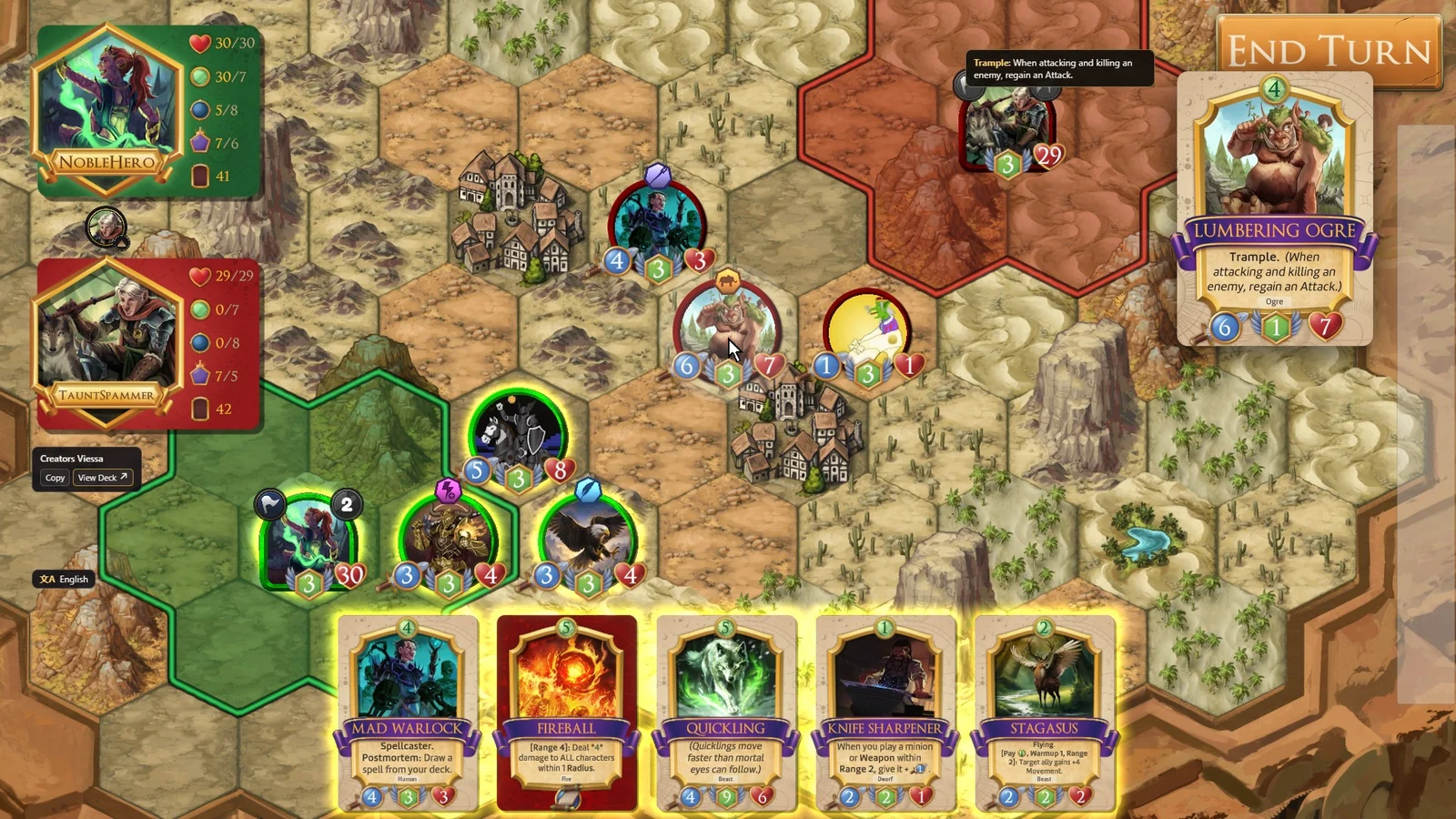
Keywords come with a reminder, so a new viewer doesn’t have to ask what Trample means.
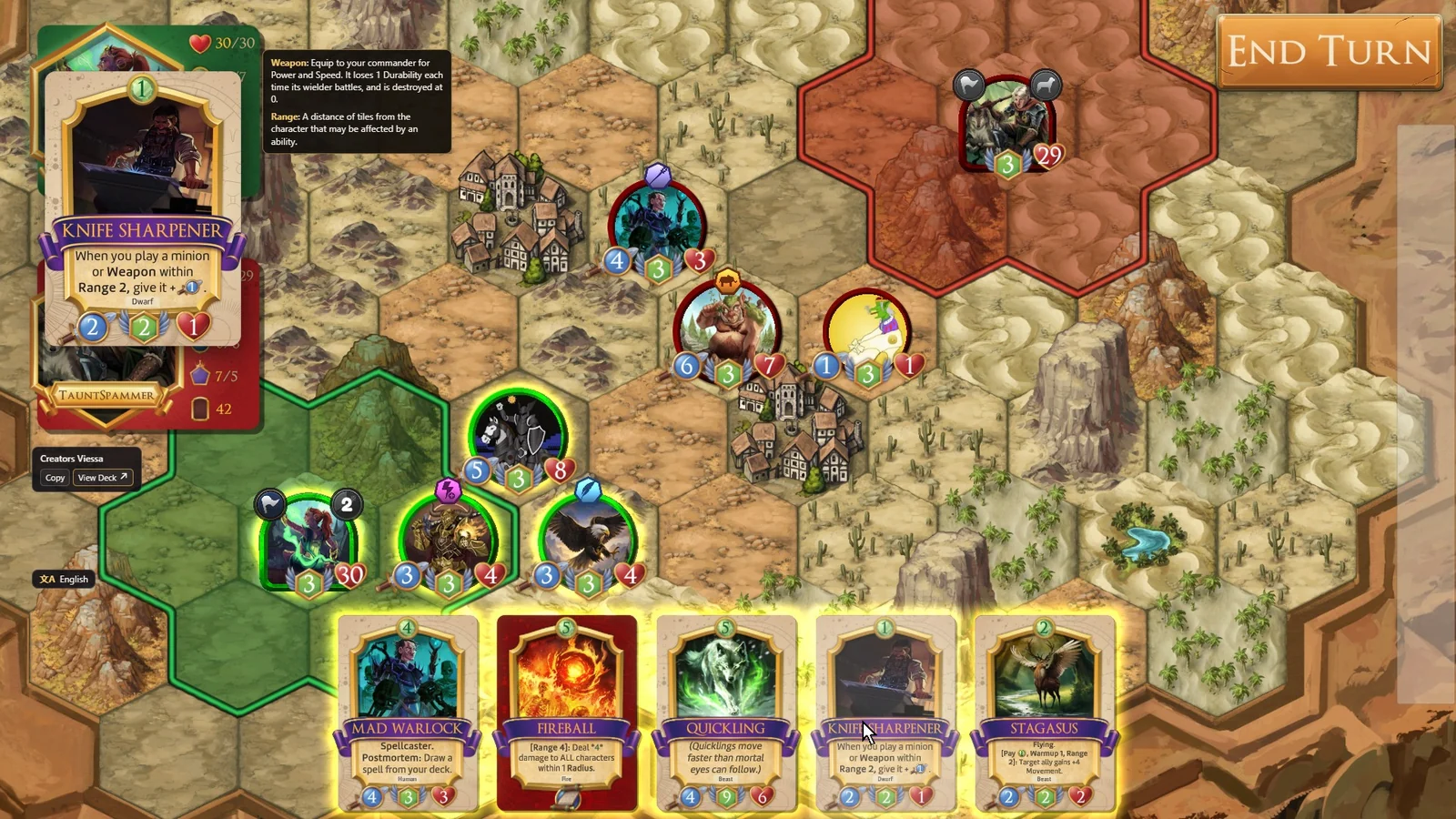
Your deck is there too. One button copies the code, ready to paste into the game, or opens the full list on our site. Mobile viewers can’t hover, so they get your decklist under the video.
What we sweated over:
- It stays in sync. Viewers see the game a few seconds late, so the extension waits out your stream delay. What they point at is what’s on their screen.
- It only shows your side. Your opponent’s hand never reaches your client, so there’s nothing to leak.
- It only runs while you’re live. Not streaming? It sends nothing.
- It speaks all eleven of the game’s languages. It follows yours by default, and viewers can pick their own.
Setup: install Atlas Conquest from Twitch’s extension directory and activate it as an overlay. In the game, go to Settings → Account, find Twitch overlay, press Link account and sign in with your streaming account. Done. Nothing extra to run.
If hovering feels a beat off, set Stream delay in the extension’s config to match your broadcast delay. Playing a tournament? Turn off the deck link.
2. Public Analytics on the Website
Every beta and playtest match feeds the analytics pages, and they refresh daily. Making a tier list? Writing a guide? Arguing on Discord? Skip the guessing.
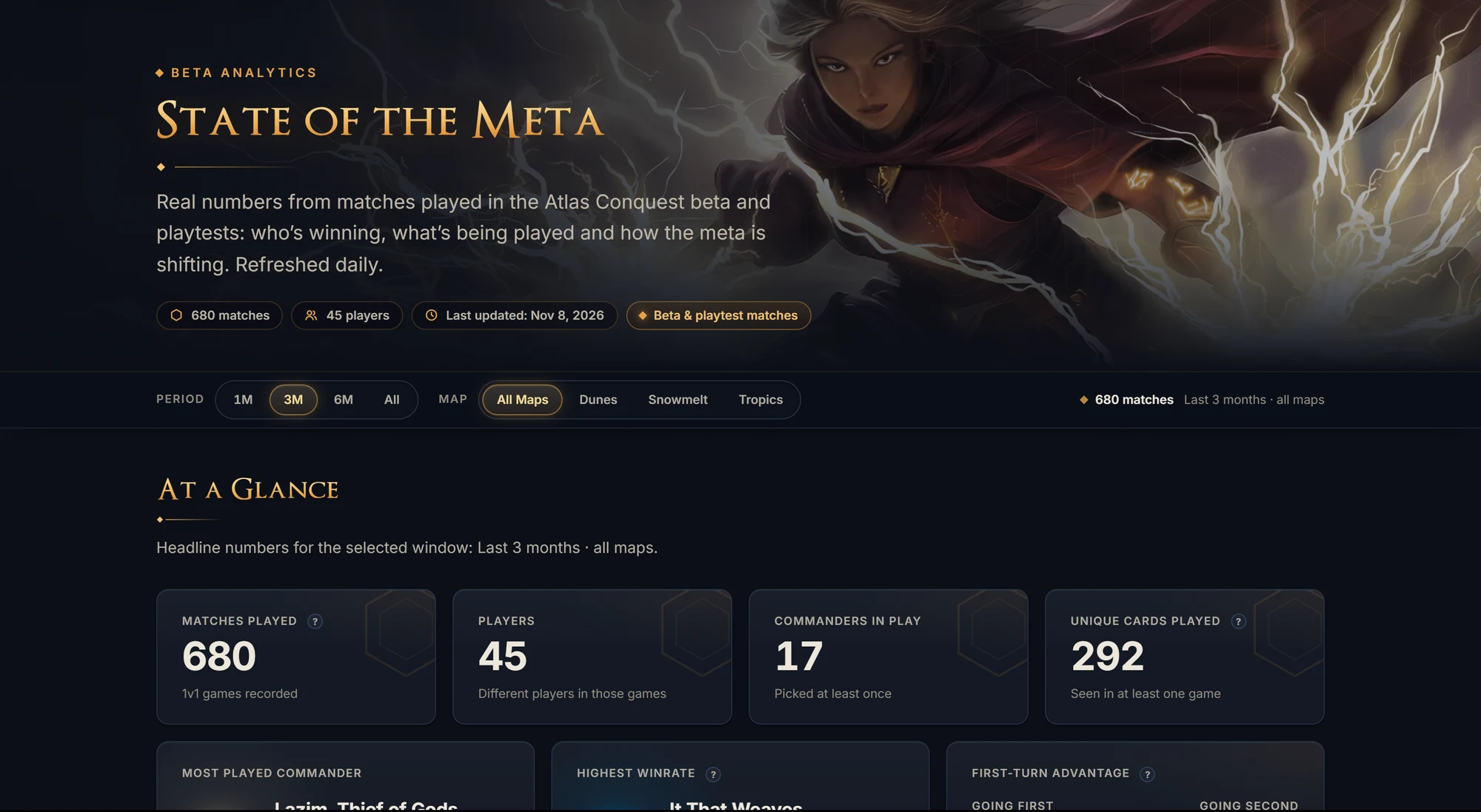
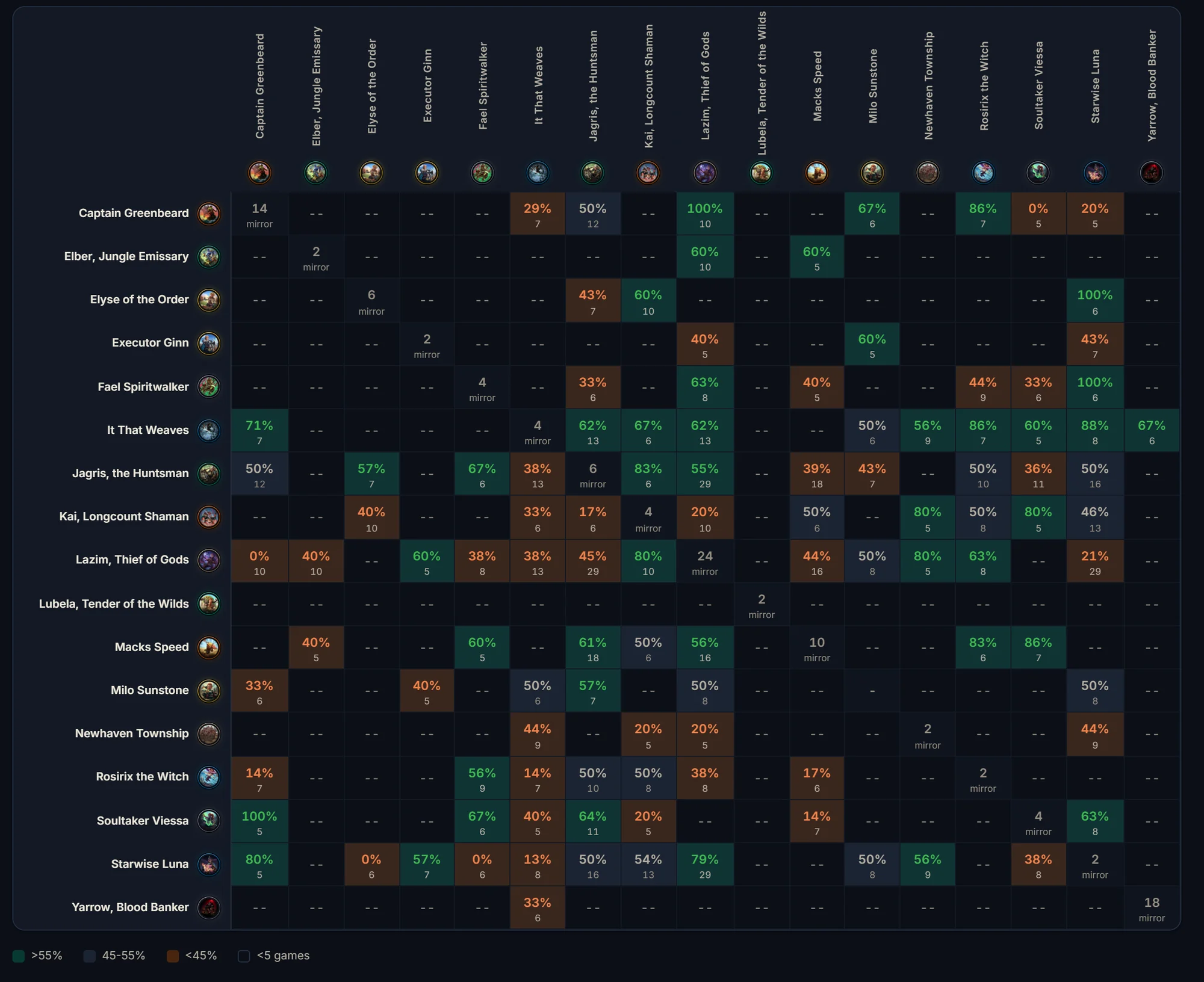
You get the current meta at a glance, a page per commander, stats for every card, matchups, popularity trends, top decks, and how much going first matters. Filter any of it by time window or map.
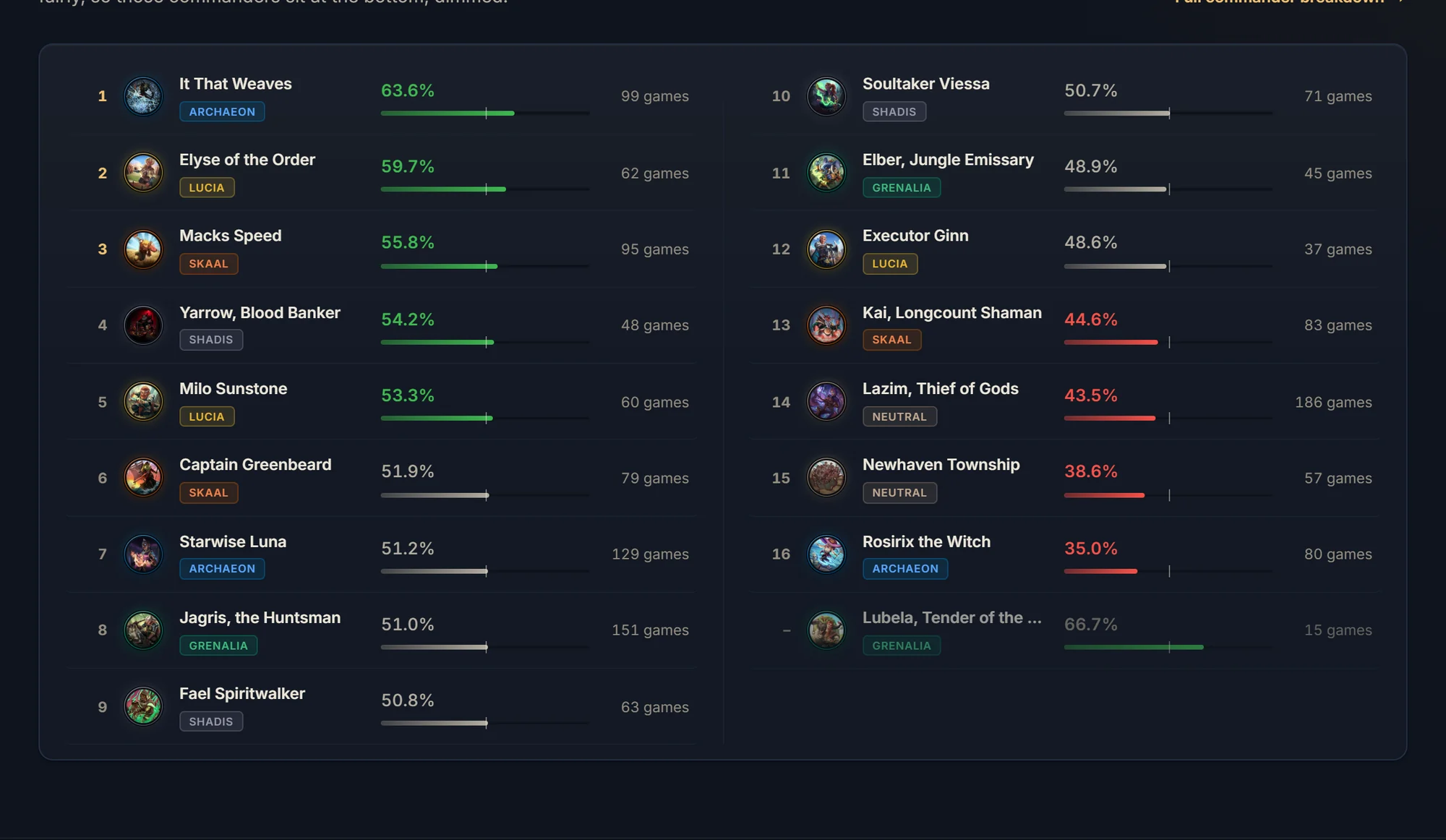
We also made it hard to mislead with. Commanders under 20 games don’t get ranked. They sit at the bottom, dimmed. Matchups under five games are greyed out. “Not enough data” beats a confident number that isn’t real.
Every card and commander has its own link, made for video descriptions. /cards.html#fireball opens Fireball. /commanders.html#soultaker-viessa opens Soultaker Viessa.
3. Arrows and Circles on the Board
Stolen, shamelessly, from chess streams. Hold a modifier and right-drag to draw an arrow. Right-click a tile to circle it. Point at the threat. Sketch the line. Mark the tile you have to hold.
If you’ve used chess.com, you already know the controls:
- Ctrl + right-drag draws cyan, Alt draws violet, Ctrl + Alt draws orange. Same modifiers plus a right-click circles a tile.
- Draw the same shape again to erase it. Redraw it in another color to recolor it.
- Left-click anywhere on the board to clear everything. No tidying up before your next move.
None of the colors overlap with the game’s own signals (targets, attacks, swaps, territory borders), so nobody will mistake your arrow for a game hint. Only you see them, which means you can think out loud without tipping off your opponent. The key is rebindable in Settings → Controls.
4. Card Art and Deck Codes
Thumbnails, tier lists and deck techs all need card images. Screenshotting them out of the game is tedious and looks bad. So the press kit has every card as a clean 800 × 1120 PNG on a transparent background. No baked-in shadow. Drop it straight into your editor.
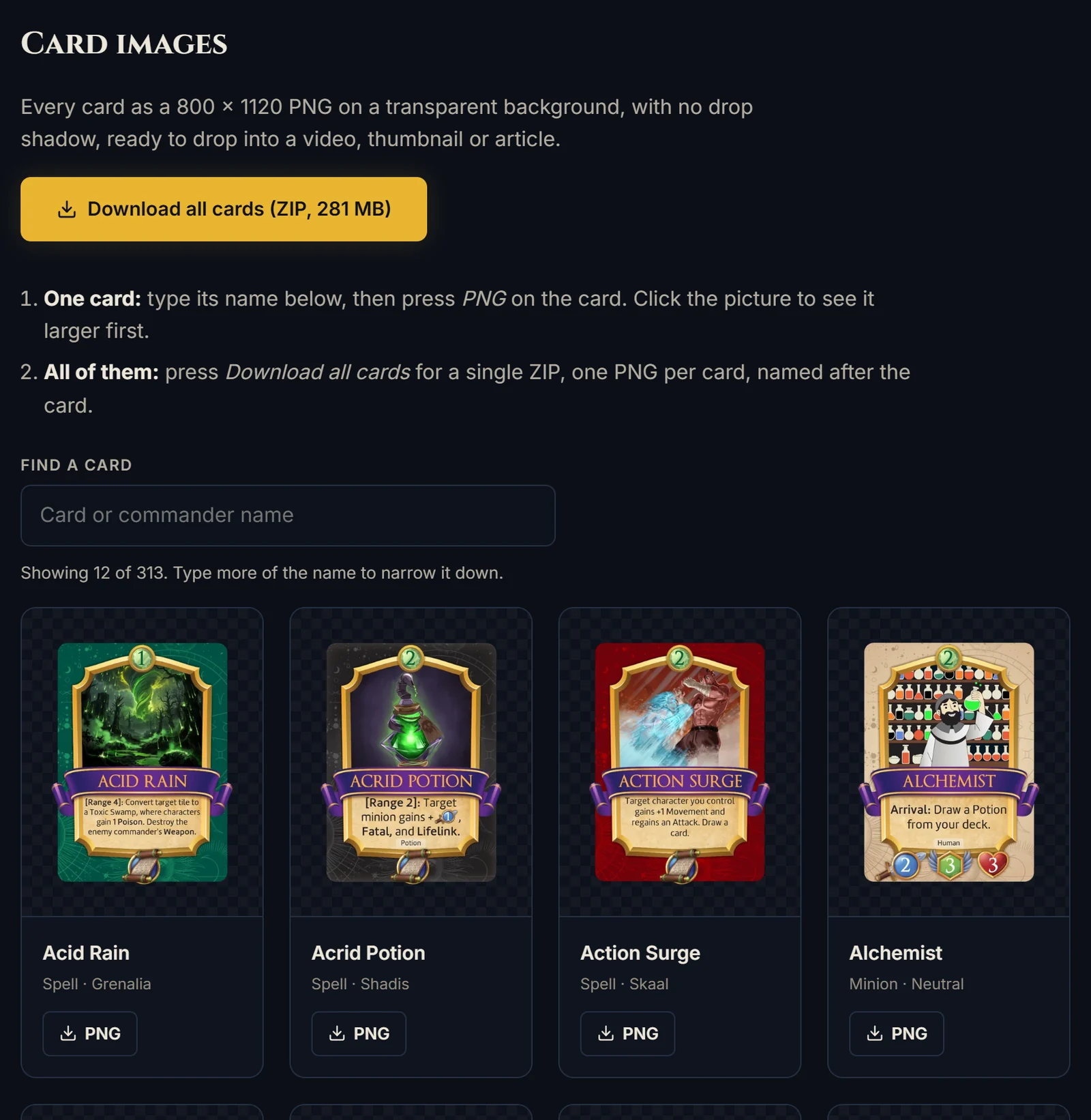
Search for one card or grab the whole set as a ZIP. Files are named after their cards, and the ZIP rebuilds whenever art changes.
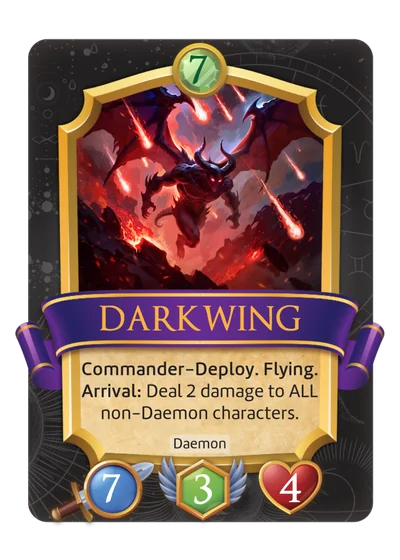
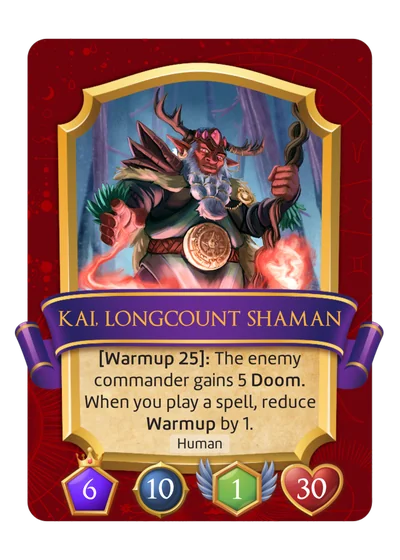
Decks travel just as easily. Every deck has a short code. Put it in your video description or pin it in chat, and viewers can paste it into the game’s deck builder and be playing your list a minute later. The deck builder on our site reads the same codes, so you can link the full list instead of typing it out.
The rest of the press kit is yours to use too: key art, logos, map stills, screenshots, gameplay clips, and the trailer in every language.
5. The Scenario Tool
We film our trailer with this. Now it ships in the game.
A scenario is a small text file that sets up a game and plays it out, step by step. Pick the map, decks and opening hands. Place units anywhere. Set mana, play cards, move the camera, fire off spell effects, hide any part of the interface. Run it, and the game performs it the same way every time.
What that gets you:
- Recreate a moment from a match and break it down, without waiting for it to come up again.
- Film one card cleanly. No hand, no timer, camera exactly where you want it.
- Retake for free. Every run is identical.
- Build a puzzle. “What would you do here?” makes great content.
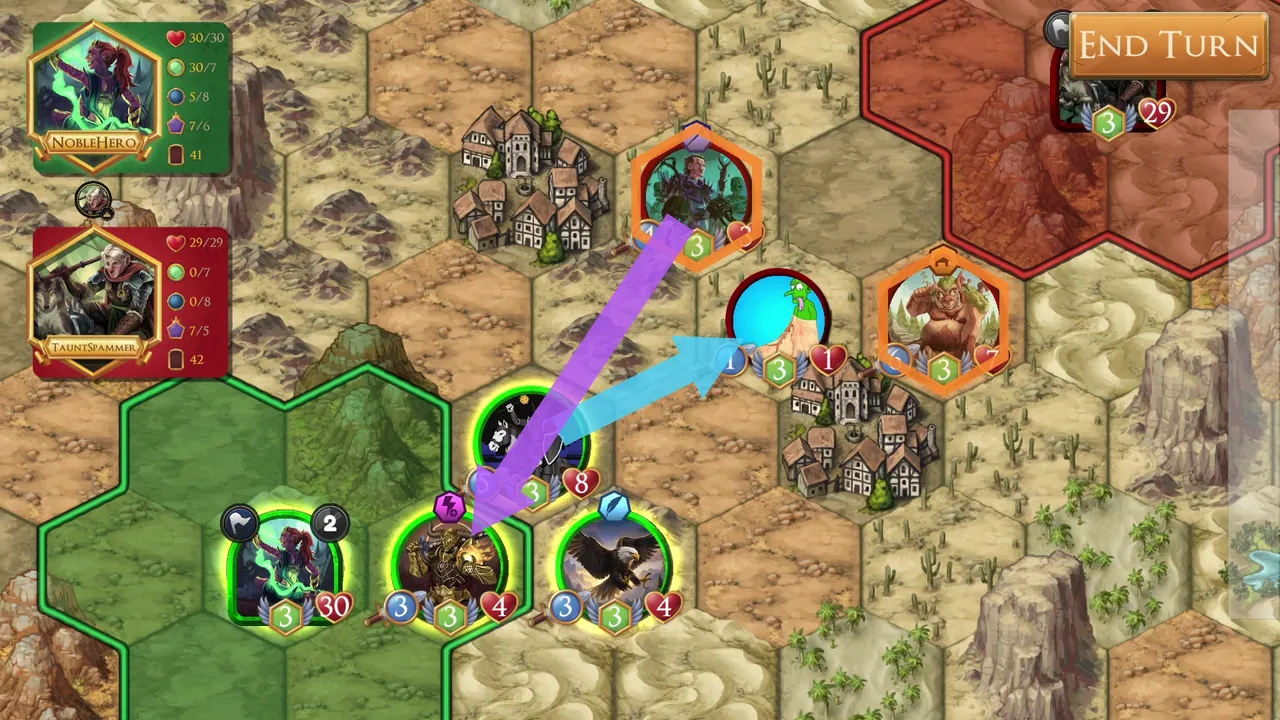
A scenario can hold at a cue. Start your recorder, press Space, and the moment plays on camera. The arrows in the clip above came from a scenario. So did every clip in our rules article.
Here’s a trimmed version of the one behind that clip. It puts a Heavy Cavalry two tiles from a Goblin Scamp, frames the camera, waits for you to hit record, then draws the arrow and sends the Cavalry in:
{ "action": "spawn_character", "card": "Heavy Cavalry",
  "position": "4,4,0", "as": "cav" },
{ "action": "spawn_character", "player": 50,
  "card": "Goblin Scamp", "position": "5,5,0" },
{ "action": "give_all_actions", "movement": 3 },
{ "action": "focus_camera", "target": "4,5,0", "zoom": 5.6 },
{ "action": "record_start" },
{ "action": "annotate", "from": "4,4,0", "to": "5,5,0",
  "path": ["4,5,0"], "color": "cyan" },
{ "action": "ui_drag_start", "character": { "ref": "cav" } },
{ "action": "ui_drag_to", "character": { "ref": "cav" }, "tile": "4,5,0" },
{ "action": "ui_drag_to", "character": { "ref": "cav" }, "tile": "5,5,0" },
{ "action": "ui_drag_drop", "character": { "ref": "cav" } },
{ "action": "wait_for_animations" },
{ "action": "record_stop" }
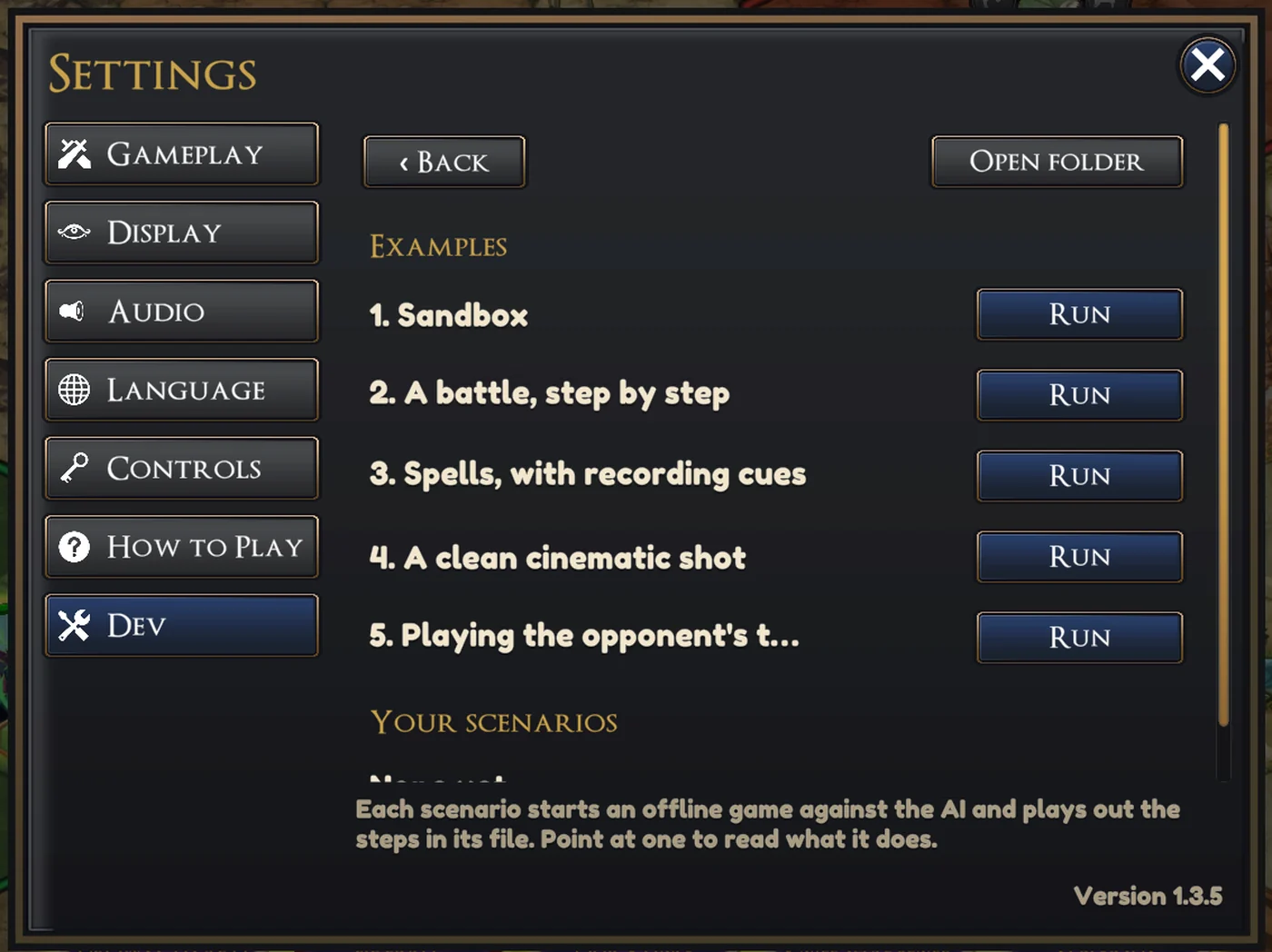
To turn it on: open Settings and click the version number seven times to unlock the Dev tab. Switch on Creator tools. You’ll get a scenario browser, a button that opens your scenario folder (Documents/Atlas Conquest/Scenarios), and five examples to copy from: a sandbox, a battle, spells and recording, a cinematic camera shot, and scripting the opponent’s turn. Edit them in any text editor. The game re-reads the file every time you run it.
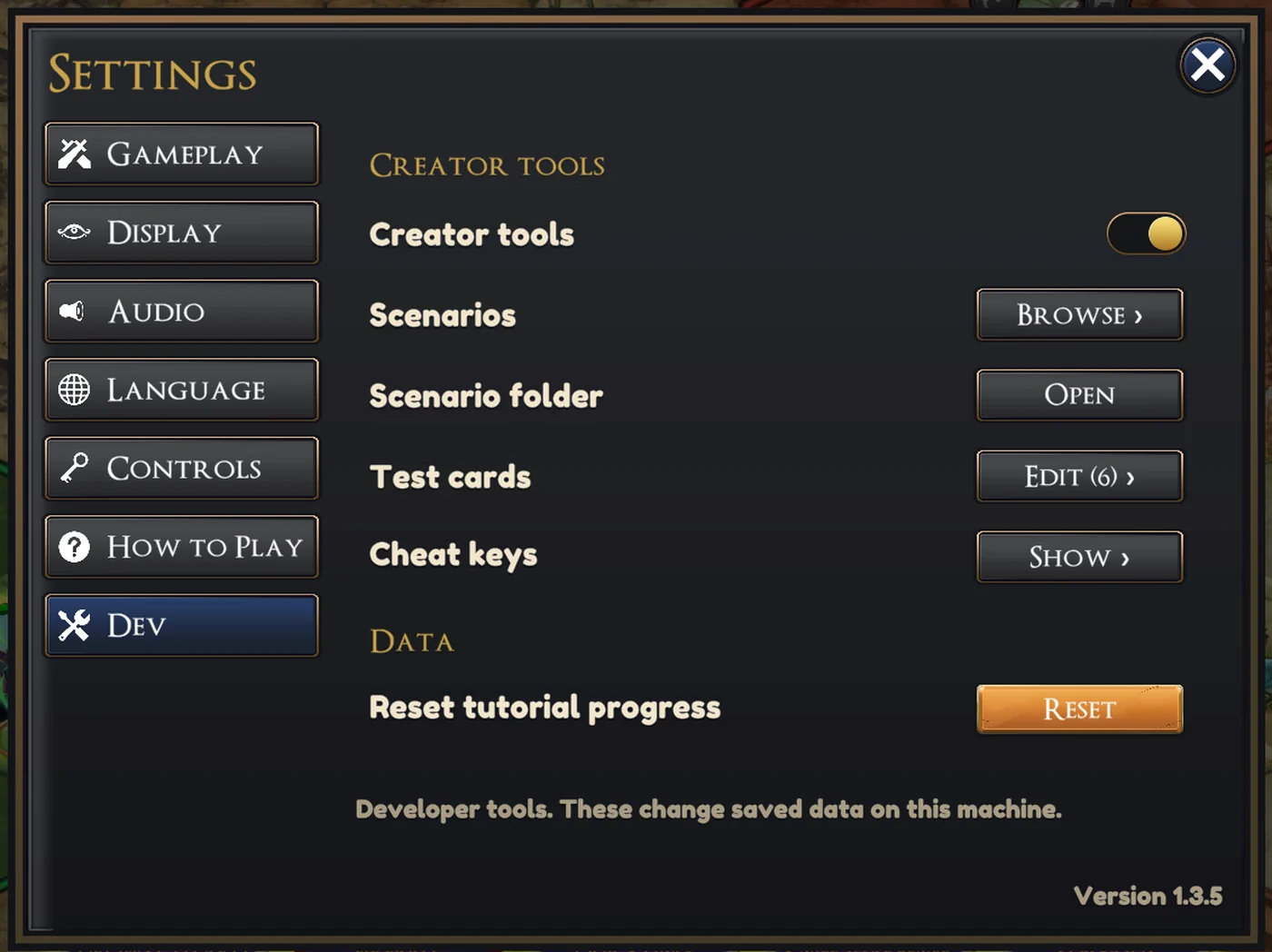
Creator tools only work offline: against the AI, in the tutorial, or against yourself. They can’t touch an online match.
Tell Us What’s Missing
Every one of these exists because someone asked, or because we needed it and figured you would too. If something’s getting in the way of your content, tell us in the Discord. We can’t wait to see what you make.
Keep reading
More from the Atlas
Patch Notes - October 21, 2026
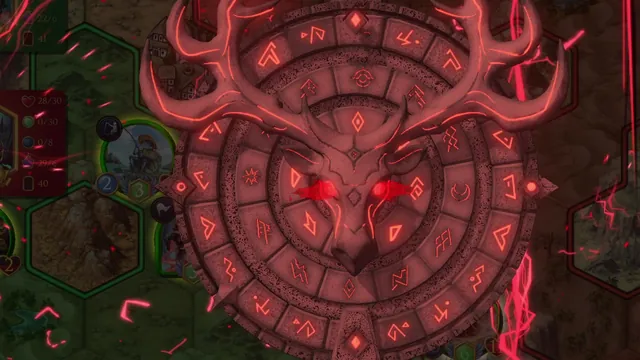
Red lightning animations and Kai's Longcount ultimate, emotes and move previews, Freya the new Hard AI, and new main menu music. Plus the full patch notes for versions 1.2.8 through 1.3.1.
The Conquest Format
The Top 8 of the Atlas Conquest League is played in Conquest — three locked decks per player, win with all of them to take the round. Full rules, a worked example, and how to think about your lineup.
Atlas Conquest League Deck Choice
A guide to picking a deck for the Atlas Conquest league — upgrade paths from the starter decks, current top lists by archetype, and other notable builds worth a look.